Skip to content
DearFlip WordPress
  • Plugins
    • WordPress Flipbook
    • JS Flipbook
    • Joomla Flipbook
  • Demos
    • Embedded Example
    • Popup Examples
    • Online PDF Viewer
  • Pricing
  • Docs
  • Support
  • Account
  • Blog
DearFlip WordPress
  • Plugins
    • WordPress Flipbook
    • JS Flipbook
    • Joomla Flipbook
  • Demos
    • Embedded Example
    • Popup Examples
    • Online PDF Viewer
  • Pricing
  • Docs
  • Support
  • Account
  • Blog

Getting Started

  • Getting Started – Quick
  • Installation
  • Create 3D Flipbooks
  • Create Spiral 3D Flipbook (Pro)
  • Create Hybrid 3D Flipbook (Pro)
  • Create PDF Viewer/Reader
  • Create Slider Viewer

Organizing Flipbooks

  • Organizing Flipbooks
  • Multiple Flipbooks in a page
  • Using Categories
  • Using Book Shelf (Pro)
  • Sort Flipbooks (Pro)
  • Open Flipbook with custom buttons & elements(PRO)

Features & Settings

  • Selective Script Loading
  • Features & Settings – Quick
  • Google Analytics(PRO)
  • Settings
  • Shortcode-options

Customizations

  • Customizing Layout / Controls (look)
  • Customizing Buttons
  • Customize popup thumb
  • Customize Page/PDF Links
  • Turn off Zoom on mouse scroll
  • Remove or change Download button
  • Remove Share Button
  • Open Book at certain page
  • Open Flipbook in New Tabs

FAQs

  • Icons are missing?
  • PDF not Loading!
  • PDF loading is slow!
  • Fullscreen Faqs
  • General FAQs & Issues
  • Flipbook loading issue
  • Change Log

Presale, Purchase & License

  • Purchase & Licensing / Upgrading
  • Free(Lite) vs Premium Comparision
  • License Utilization
  • License Activation issues
  • How to Change Invoice details
View Categories
  • Home
  • Documentation
  • Getting Started
  • Installation

Installation

1 min read

Contents hide
1 Install DearFlip using the WordPress Admin Plugin Upload
2 Issues during installing a Plugin:
2.1 Plugin file size is too big:
3 Manually Install a WordPress Plugin using FTP

Install DearFlip using the WordPress Admin Plugin Upload #

  1. First, you need to download the plugin from the site or the mail you have received.
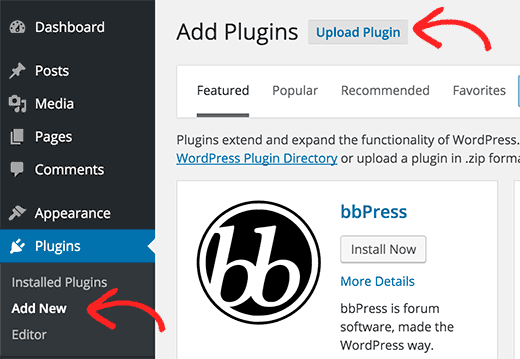
  2. Next, you need to go to the WordPress admin area and visit Plugins » Add New.
  3. After that, click on the Upload Plugin button on top of the page.upload plugin wp admin
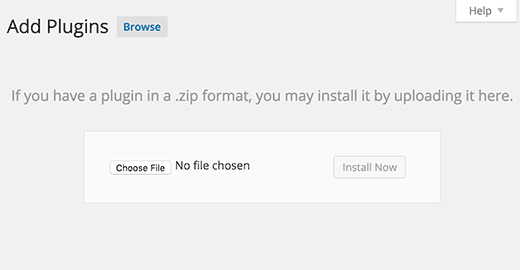
  4. Then you need to click on the Choose File button and select the plugin file you downloaded earlier.plugin upload page
  5. After you have selected the file, you need to click on the Install Now button.
  6. WordPress will now upload the plugin file from your computer and install it for you.
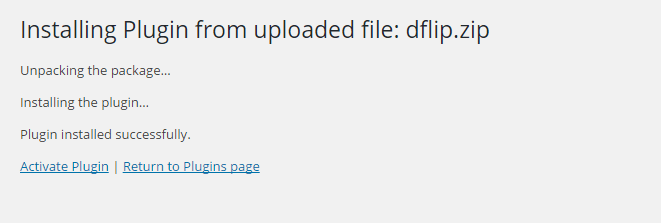
  7. You will see a success message like this after installation is finished.
Installing Plugin Manually

Once installed, you need to click on the Activate Plugin link to start using the plugin.

Issues during installing a Plugin: #

Plugin file size is too big: #

The file size limitation is from WordPress or PHP. Please follow the following article to solve the issue: https://www.wpbeginner.com/wp-tutorials/how-to-increase-the-maximum-file-upload-size-in-wordpress/

Manually Install a WordPress Plugin using FTP #

In some cases, your WordPress hosting provider may have file restrictions that could limit your ability to install a plugin from the admin area.

In this situation, your best bet is to install the plugin manually using FTP.

  1. First, you will need to download the plugin’s source file (it will be a zip file). Next, you need to extract the zip file on your computer.
  2. Extracting the plugin zip file will create a new folder with the same name. This is the folder that you need to manually upload to your website using an FTP client.
  3. You would need to access your host through the FTP manager. If you do not have your FTP username and password, then contact your WordPress hosting provider and ask them.
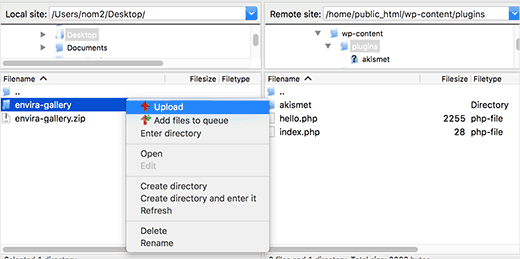
  4. Open the FTP client on your computer and connect to your website using the login credentials provided by your web host. Once connected, you need to access the path /wp-content/plugins/
  5. Next, upload the folder you extracted from the zip file to the /wp-content/plugins/ folder on your web server.FTP upload
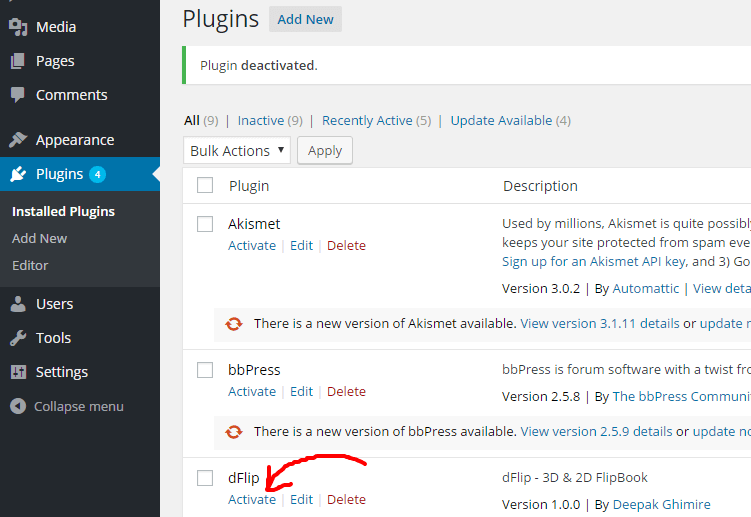
  6. After uploading the files, you need to visit the WordPress admin area and click on the Plugins link in the admin menu. You will see your plugin successfully installed on the plugins page.Installed plugin dflip
  7. You need to click on the Activate link below the plugin. Upon activating, you may need to configure the plugin settings. WordPress plugins come with their own settings which differ from one plugin to another so we will not describe them here.
Still stuck? How can we help?

How can we help?

Updated on December 14, 2023

Leave a Comment Cancel reply

Table of Contents
  • Install DearFlip using the WordPress Admin Plugin Upload
  • Issues during installing a Plugin:
    • Plugin file size is too big:
  • Manually Install a WordPress Plugin using FTP

Links

  • Terms and Conditions
  • License Terms
  • Privacy Policy
  • Browser Test

Recent Posts

  • (no title)
  • Protected: Flipbook in a password page
  • Case Study: Open PDF File links as Flipbook
  • Transparent background example
  • Multiple Embeds in a Page

Products

  • DearFlip 3D Flipbook JS Plugin
  • DearFlip 3D Flipbook WordPress Plugin
  • DearFlip 3D Flipbook Joomla Plugin
  • Online PDF Viewer
  • DearFlip PDF Flipbook for Chrome
  • Mashshare Social Sharing WordPress plugin
© 2026 | A product of DearHive.com